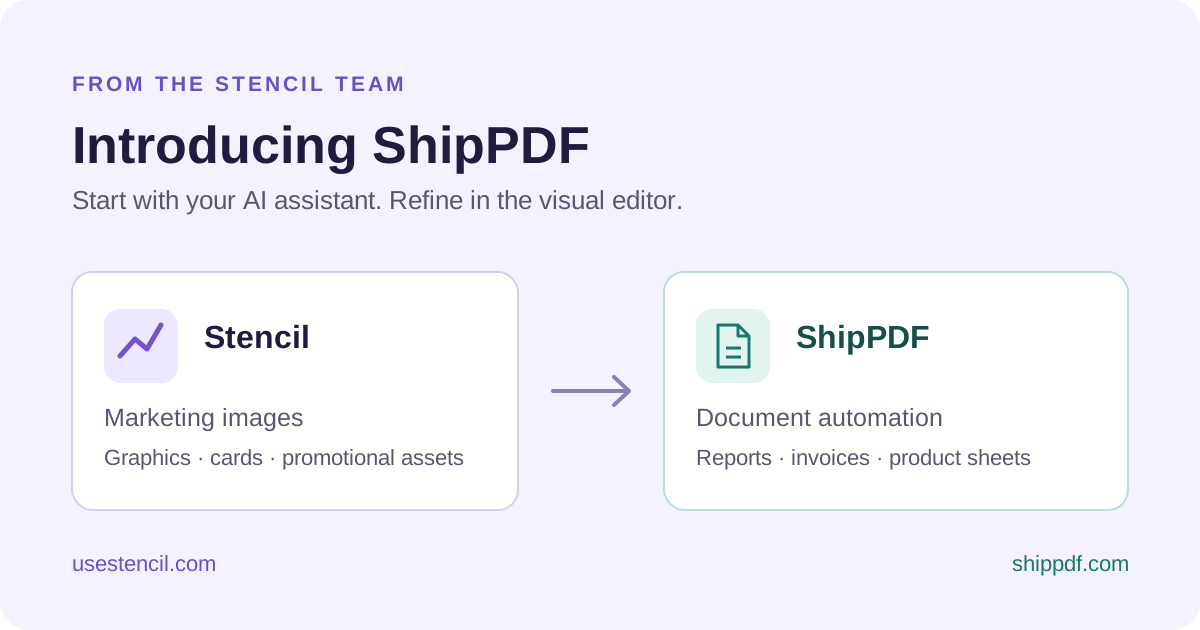
Today we're introducing ShipPDF, our dedicated tool for creating reusable PDF templates and generating branded documents from your data.
If you use Stencil, you already know the value of a template: design it once, change the data, and generate the next version without rebuilding the layout. ShipPDF brings that approach to invoices, proposals, packing slips, product datasheets, and reports.
With ShipPDF, you can ask your AI assistant to build the template, open it in a visual editor to adjust the design, and reuse it for the next product, customer, or order. You don't need to write HTML or CSS to design it.
Ask your AI assistant to build the document
ShipPDF connects to compatible AI assistants through MCP, the Model Context Protocol. MCP gives your assistant access to tools for creating and editing templates, working with their data fields, publishing a reusable version, and generating PDFs.
You can describe the document you need in everyday language. For a product sheet, that might look like this:
Create an A4 product datasheet using this fashion photograph. Include the collection, product name, price, and SKU, with a description and a table for fabric, sizes, color, and care instructions. Make the product details reusable data fields.
The assistant can use ShipPDF's tools to create the template in your workspace. You can then inspect the layout, adjust it in the editor, and preview it with sample data before publishing it.
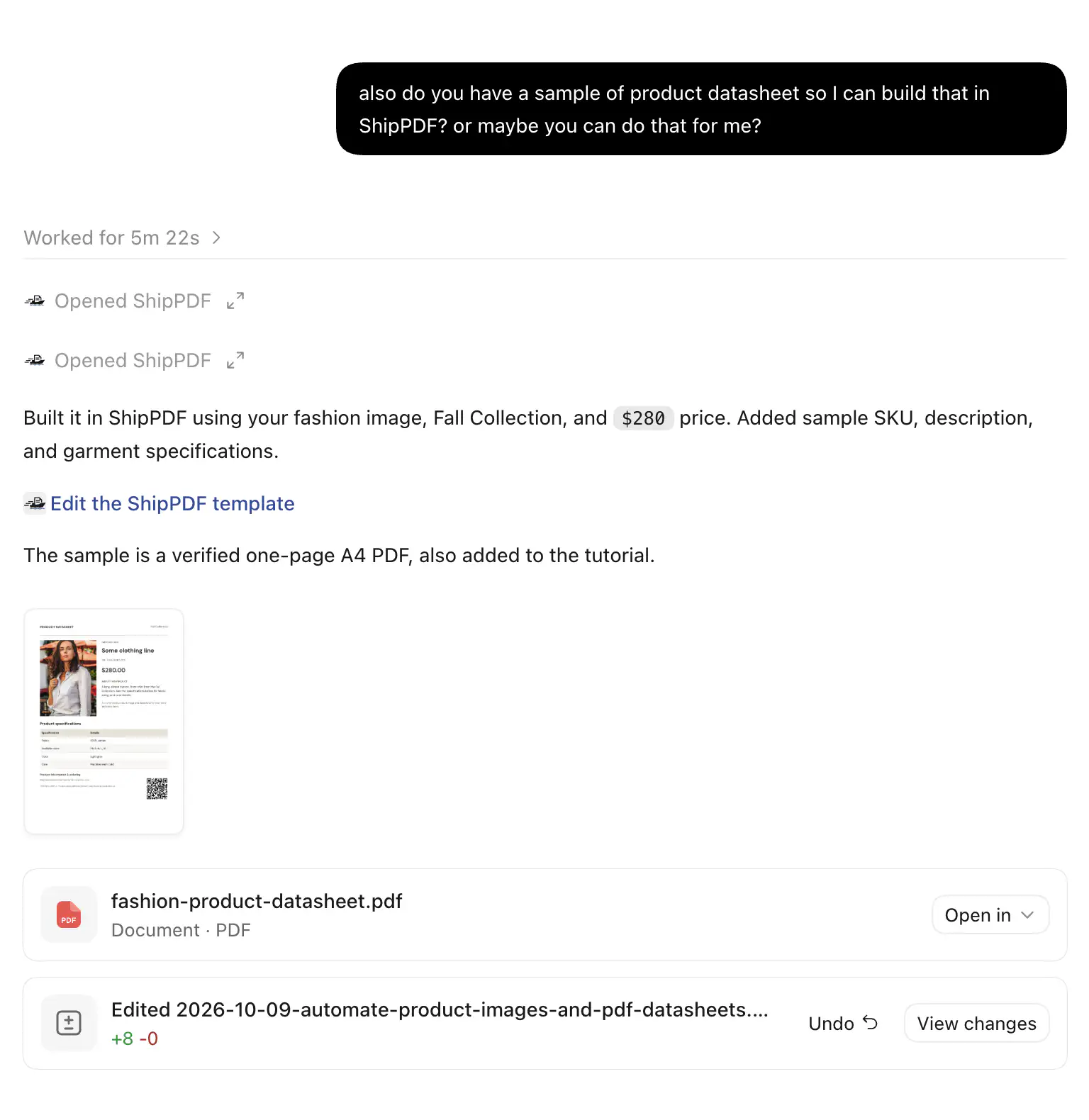
We used this workflow to create the fashion product datasheet in our companion tutorial. The assistant built the template with the same photograph, collection, product name, and price as the Stencil ad, added the sample document fields, and generated a one-page A4 PDF. That template remains editable in ShipPDF.
From a request in chat to an editable ShipPDF template and a generated PDF: the actual conversation behind our tutorial's product datasheet.
This is useful beyond the first draft. Ask your assistant to change a section, update the sample data, or generate a document from an existing published template. The template it creates is also available to your API and automation workflows.
Connect your preferred compatible client using the ShipPDF AI assistant setup guide. Authentication and granted permissions determine which actions it can perform.
Design visually, without HTML or CSS
You can also start directly in the editor. Drag and drop rows, columns, text, images, tables, and other elements into your document, then adjust their settings in the inspector.
Rows and columns organize the page. Text and images carry the content. Tables and loops repeat your data, while page controls handle longer documents. You can change spacing, typography, colors, and image sizing through the editor instead of maintaining an HTML template or CSS stylesheet.
The same editor lets you refine a template created by your assistant. For example, move the photograph beside the description, give the price more prominence, or change the specification table's styling.
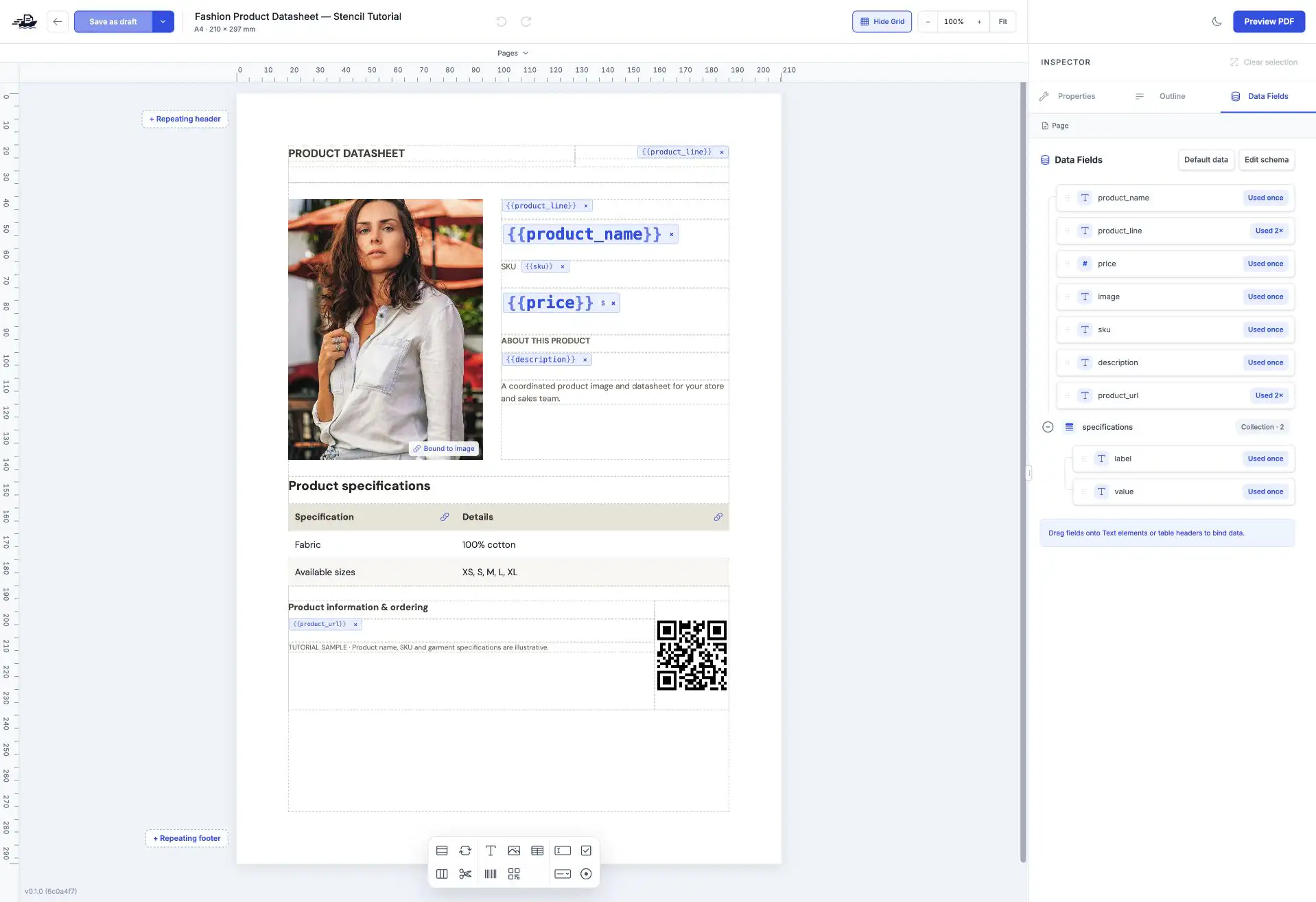
The product datasheet from our tutorial, created through an AI assistant and opened in ShipPDF's visual editor. The Data Fields pane shows where its content is bound to product data.
Connect the layout to your data
Data bindings connect template elements to fields in your product, customer, or order records. Bind a title to product_name, an image to image, or a price to price, and each generated document uses the values you supply.
Format a numeric price as currency in the template rather than sending a preformatted string. The same approach works for numbers and dates, so you can keep your source data structured while controlling how it appears in the document.
A table can bind to a collection of records. In the product datasheet, each specification has a label and a value. The template repeats a row for each specification, so products with different numbers of details can use the same layout.
You can maintain the layout separately from the product data. When a price or description changes, pass the updated record into the published template to generate the next document.
Use formulas for amounts and totals
Formulas help with documents that need calculations. In an invoice, for example, a table column can multiply each item's quantity by its unit price. A summary can then sum those amounts into a total.
Calculated fields can also provide values such as a count or an aggregate total that you reuse elsewhere in the document. Currency and number formatting control their presentation.
This keeps the calculation attached to the reusable template. You supply the item data, and the document calculates the values according to the rules you've defined.
Why a dedicated document tool?
Stencil already supports PDF generation. You can use it for designs such as certificates, tickets, and labels, as well as the images you generate for marketing and social media.
Documents introduce another set of layout needs. An invoice might have three line items today and thirty tomorrow. A report might need another page for a client's campaign results. A product sheet might combine a photograph with a table of specifications and several paragraphs of text.
Those workflows benefit from layouts that accommodate changing amounts of content. ShipPDF focuses on that work: binding structured data to a document, repeating rows, managing page breaks, and keeping the result reusable for the next customer or reporting period.
What can you create with ShipPDF?
You can build a template in ShipPDF's visual editor, connect its fields to your data, and generate a PDF from a published version of that template.
A few examples:
- Invoices: customer details, item descriptions, quantities, and totals in a branded layout.
- Client reports: an executive summary, campaign results, images, and recommendations.
- Product datasheets: product photographs and specifications in a downloadable document.
- Packing slips: recipient details and a repeating list of items for each order.
Text, images, tables, barcodes, QR codes, and fillable fields give you the building blocks. Data-driven tables and loops handle repeated content, while page controls help longer documents stay readable.
The important setup happens in the template. Once the layout and fields are ready, each new document starts with data rather than another round of manual editing.
Where Stencil and ShipPDF fit
Choose the tool around the output you're building:
| What you're creating | Where to start |
|---|
| Social images, promotional cards, and marketing graphics | Stencil |
| Certificates, tickets, or labels built from a Stencil design | Stencil's existing PDF workflow |
| Documents with variable-length tables and content across multiple pages | ShipPDF |
| A product flyer and a detailed PDF product sheet | Stencil for the flyer, ShipPDF for the product sheet |
You can use either product independently. When a workflow needs both, your automation can send the same source data to each template. You can also include a generated Stencil image in a ShipPDF document when the layout calls for it.
For a product catalog, that could mean generating a promotional flyer in Stencil and a detailed product sheet in ShipPDF. Both templates use the same product record, so the name, photograph, and price stay consistent across the two outputs.
Try a complete workflow
We've put together a companion guide: How to Automate Product Images and PDF Datasheets from the Same Product Data.
It walks through the product data, the two templates, and the API requests that generate both assets. Start with one product, review the outputs, then reuse the workflow across your catalog.
To explore the document side first, visit ShipPDF and build a template for a document you create regularly.