A product launch usually needs more than one piece of content. You might want a promotional flyer for social media or an email campaign, plus a downloadable product sheet for customers who need the specifications.
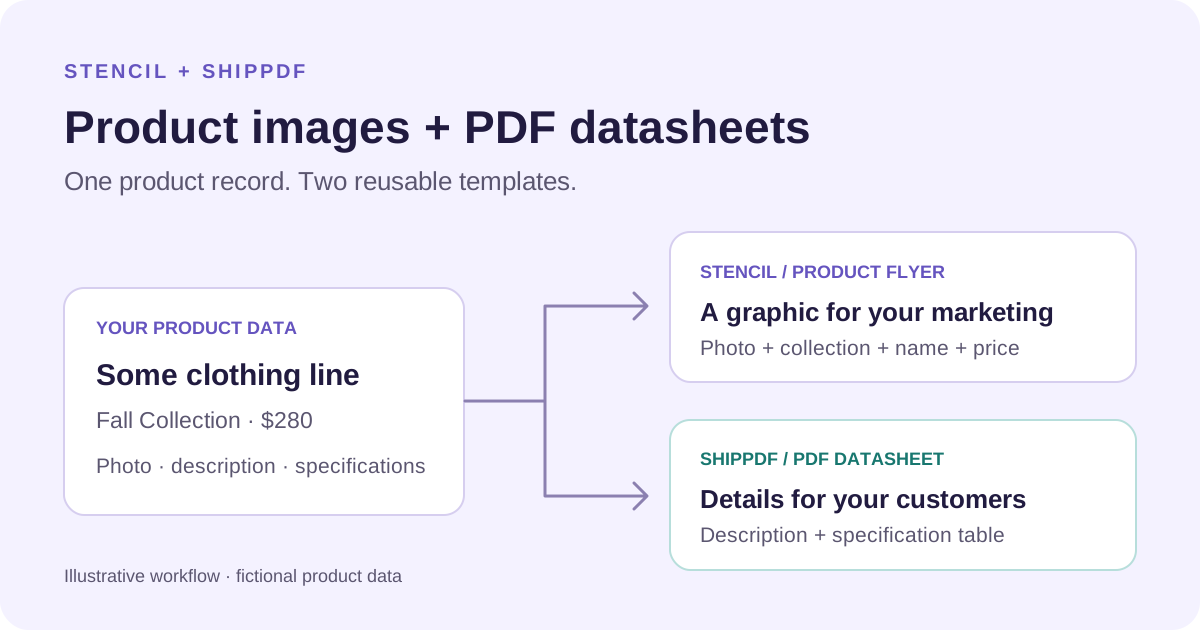
Both start with the same four fields: the product line, product name, price, and image. Instead of copying those details into two designs every time, you can connect one product record to two reusable templates.
In this guide, we'll build the product flyer in Stencil and the PDF product sheet in ShipPDF. The flyer shows the product photograph, collection, product name, and price. The product sheet adds a description, a specification table, and ordering information.
We'll use the fashion product ad shown in the Stencil editor: Fall Collection, a shirt photograph, and a $280 price. Its product name is currently the placeholder “Some clothing line.” The SKU and garment specifications below are illustrative additions for the product sheet; replace them with verified catalog details before generating a customer-facing document.
For an introduction to the document tool, read Introducing ShipPDF.
What you'll need
- A Stencil account, API key, and product flyer template.
- A ShipPDF account, published product sheet template, and an API token with
documents:create and documents:read scopes.
- Product data from your catalog, spreadsheet, or backend, including a photograph URL accessible to both services.
- A server-side script or automation tool that can make HTTP requests and save the results.
The examples use curl to make the requests easy to inspect. Store API tokens in your server or automation tool's credentials settings.
1. Prepare one product record
Start with the fields used by the Stencil ad, then add the details needed by the PDF product sheet:
JSON
{
"product_name": "Some clothing line",
"sku": "FALL-SHIRT-001",
"product_line": "Fall Collection",
"description": "A long-sleeve button-front shirt from the Fall Collection. See the specifications below for fabric, sizing, and care details.",
"price": 280,
"image": "YOUR_PRODUCT_PHOTO_URL",
"product_url": "https://example.com/products/fall-collection-shirt",
"specifications": [
{ "label": "Fabric", "value": "100% cotton" },
{ "label": "Available sizes", "value": "XS, S, M, L, XL" },
{ "label": "Color", "value": "Light gray" },
{ "label": "Care", "value": "Machine wash cold" }
]
}
Replace the photograph and product URLs with real URLs for your product. The price is in USD for this example. Keep it as a number in the source record: your automation can format it as $280 for the flyer, while ShipPDF can apply currency formatting to the numeric field.
product_line, product_name, price, and image feed the Stencil ad. ShipPDF uses those same fields plus sku, description, product_url, and specifications. The Stencil template does not need the extra document fields.
For a spreadsheet-based workflow, use one row per product and build the specification array in a transform step. For a catalog API, map the corresponding fields from the product response. A new product or an approved change can trigger both generation steps.
2. Design the product flyer in Stencil
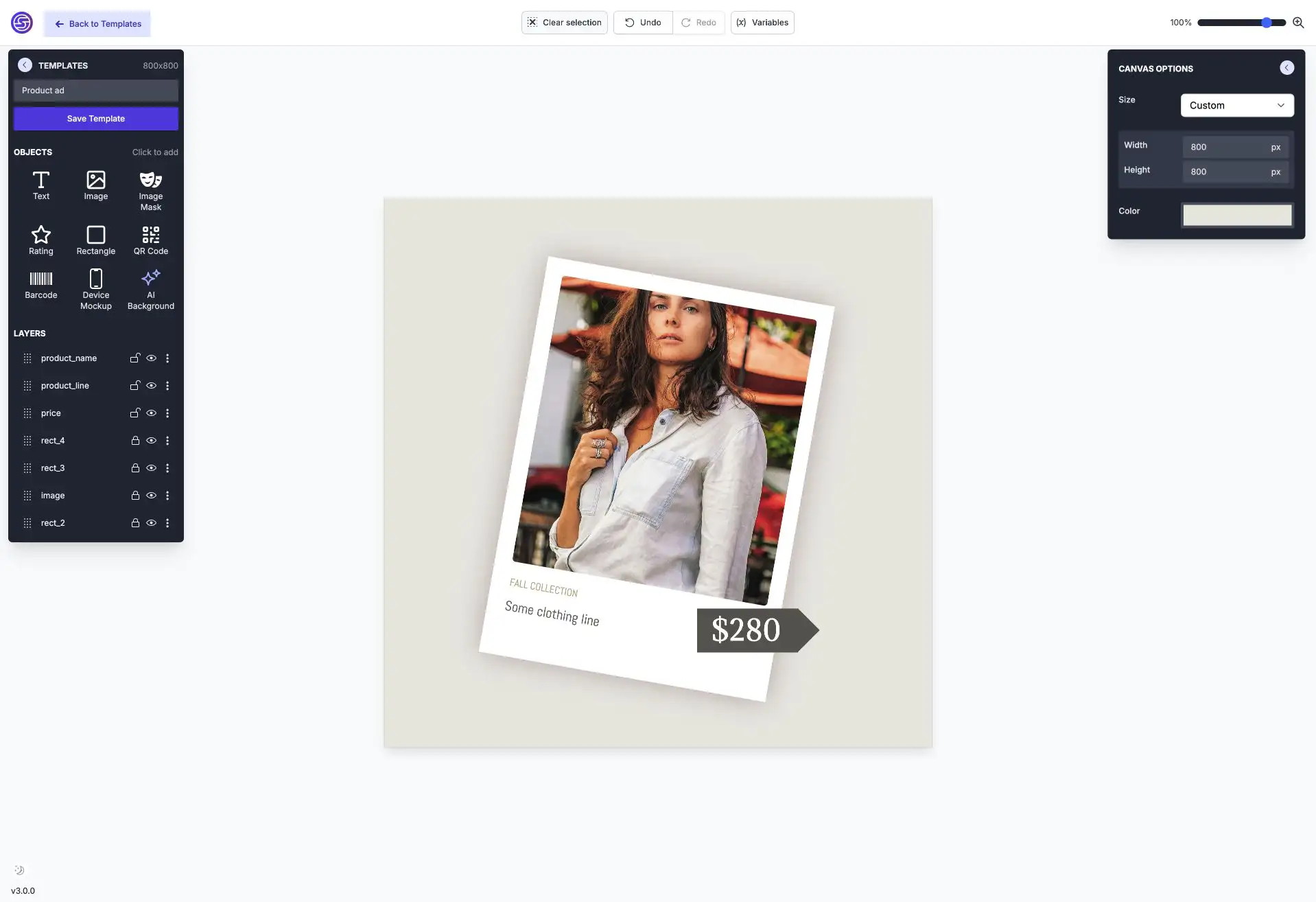
Use the existing 800 × 800 product ad template. It places a fashion photograph in a tilted frame, with the collection and product name underneath and a price tag beside it. Keep the frame, background, and decorative elements in the template.
An existing product ad template in the Stencil editor. The photograph, collection text, and price form the promotional layout; the layers panel shows the elements you can map to product data.
The dynamic layers in this template are named product_line, product_name, price, and image. When adapting another template, use its API Console to check the identifiers and map your request to the corresponding layers.
Use these element identifiers for the dynamic content:
| Element identifier | Element type | Value from the product record |
|---|
image | Image | image |
product_name | Text | product_name |
product_line | Text | product_line |
price | Text | price, formatted as USD |
Check the template's API Console to confirm these identifiers and copy its template ID. Preview a long product name as well as a photograph with different proportions so you can adjust the crop and text space.
Set STENCIL_API_KEY in your terminal environment. Replace the template ID and photograph URL in this request:
SH
curl --fail-with-body https://api.usestencil.com/v1/images/sync \
-H "Authorization: Bearer $STENCIL_API_KEY" \
-H "Content-Type: application/json" \
-d '{
"template": "YOUR_STENCIL_TEMPLATE_ID",
"modifications": [
{ "name": "image", "src": "YOUR_PRODUCT_PHOTO_URL" },
{ "name": "product_name", "text": "Some clothing line" },
{ "name": "product_line", "text": "Fall Collection" },
{ "name": "price", "text": "$280" }
]
}'
The synchronous endpoint returns the generated asset in the same request. Open image_url from the successful response and check the flyer. Save that URL against the product record as flyer_url.
For request options and asynchronous generation, see the Stencil image API documentation. If you prefer starting with a sample design, explore Stencil's product ad generator.
3. Design the product sheet in ShipPDF
The product sheet gives a customer room to evaluate the product. Build an A4 portrait template with your branding, the product line, product name and SKU, the same fashion photograph, description, price, and a garment specification table. Add a QR code for the product page if you expect customers to print the sheet.
Define these data fields in the template:
product_name         String
sku                  String
product_line         String
description          String
price                Number
image                String
product_url          String
specifications       Collection
  label              String
  value              String
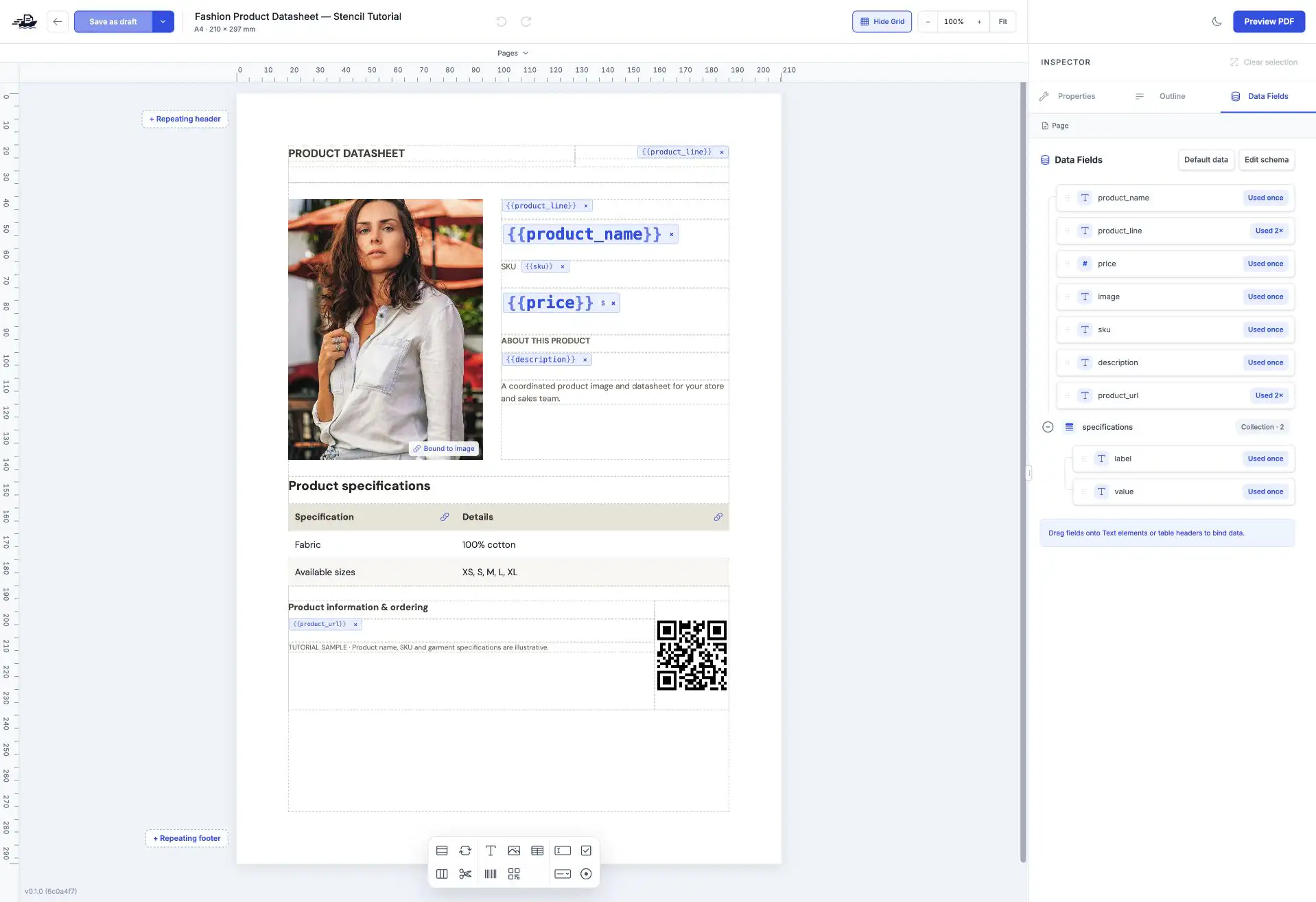
The datasheet in ShipPDF's editor. The Data Fields pane shows the four shared product fields, the additional document fields, and the specification collection's label and value fields.
Bind the text elements to their fields. On the price binding, choose USD currency formatting with two decimal places. Select the Image element, choose From data field, and bind it to image.
Set the Table source to specifications. Bind its two columns to the current row's label and value. Each specification becomes a row, so the same template can handle products with different numbers of specifications. Bind the QR Code to product_url.
The sheet uses the original photograph and product data. The Stencil flyer is a separate promotional asset; you don't need to embed the entire flyer in the PDF.
Preview with the sample record, a longer description, and enough specifications to create another page. Check image proportions and page breaks, then publish the template and copy its ID. See ShipPDF's data binding guide for the editor's image and table controls.
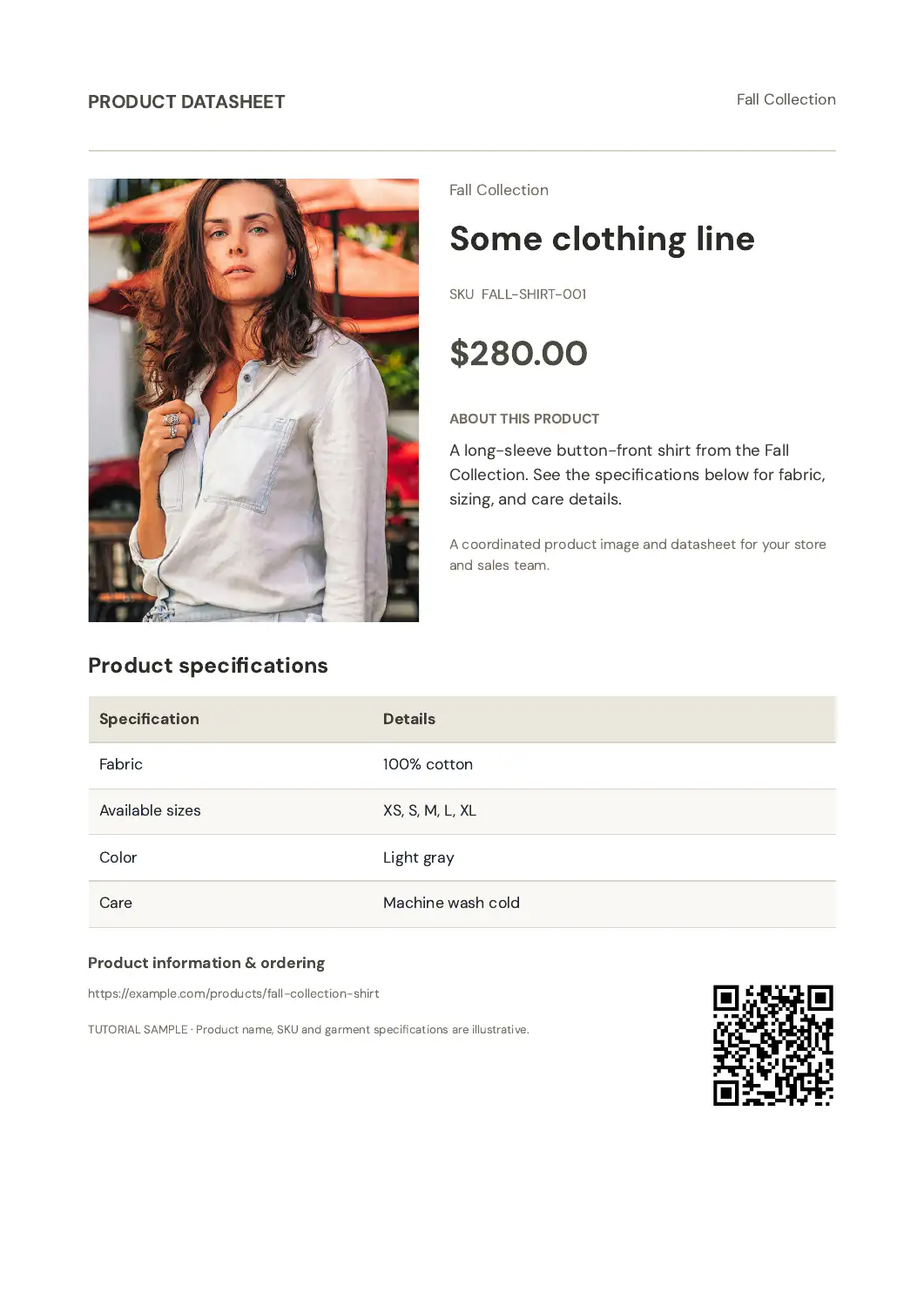
Here is the product sheet we created in ShipPDF using the same fashion photograph and sample data:
An actual generated A4 PDF from the tutorial template. The SKU, garment specifications, and example product-page URL are sample values.
4. Automate both outputs
Generate the PDF product sheet
Set SHIPPDF_API_TOKEN in your terminal environment. Replace the published template ID, photograph URL, and product page URL:
SH
curl --fail-with-body https://api.shippdf.com/v1/documents \
-H "Authorization: Bearer $SHIPPDF_API_TOKEN" \
-H "Content-Type: application/json" \
-H "Idempotency-Key: fall-shirt-001-product-sheet-v1" \
-d '{
"template_id": "YOUR_PUBLISHED_SHIPPDF_TEMPLATE_ID",
"data": {
"product_name": "Some clothing line",
"sku": "FALL-SHIRT-001",
"product_line": "Fall Collection",
"description": "A long-sleeve button-front shirt from the Fall Collection. See the specifications below for fabric, sizing, and care details.",
"price": 280,
"image": "YOUR_PRODUCT_PHOTO_URL",
"product_url": "https://example.com/products/fall-collection-shirt",
"specifications": [
{ "label": "Fabric", "value": "100% cotton" },
{ "label": "Available sizes", "value": "XS, S, M, L, XL" },
{ "label": "Color", "value": "Light gray" },
{ "label": "Care", "value": "Machine wash cold" }
]
}
}'
ShipPDF returns a queued document with an id. Save it against the product record, then fetch its status using that ID:
SH
curl --fail-with-body \
https://api.shippdf.com/v1/documents/YOUR_RETURNED_DOCUMENT_ID \
-H "Authorization: Bearer $SHIPPDF_API_TOKEN"
When status is completed, download the PDF from pdf_url. The download URL is short-lived, so save the file in your own storage before adding a lasting product-sheet download link to your store.
Reuse the same idempotency key when retrying the same generation request. For an intentional revision, such as a price or specification change, use a new version key. The ShipPDF API quickstart covers polling and completion webhooks.
Connect both templates to the same record
Once the individual requests work, connect them to your product workflow:
- Load an approved product record and validate its required fields.
- Map
image, product_line, product_name, and the formatted price to the Stencil flyer template.
- Map the same four fields, plus SKU, description, product URL, and specifications, to the ShipPDF template.
- Save the flyer URL and ShipPDF document ID against the product SKU and content version.
- Wait for PDF completion, then download and store the product sheet.
- Review both assets before your workflow adds them to a campaign or product page.
The generation steps can run independently because they use the same source record. If the PDF step fails, retry that step without recreating a completed flyer. When polling, pause between checks and use a bounded timeout; send failed or timed-out jobs for review.
Use the same approved product version for both requests. That keeps a price update from appearing in the flyer while the product sheet still carries yesterday's price. Record each output's version and completion status before marking the pair ready.
For larger catalogs, Stencil's asynchronous image endpoint and ShipPDF's document completion webhook let your automation continue when each asset is ready.
5. Review the product image and PDF datasheet
Download the sample PDF product sheet to inspect the complete layout at print size.
The Stencil output should retain the fashion layout shown above: the shirt photograph, “Fall Collection,” “Some clothing line,” and $280. The PDF sheet should show the same product and price, with SKU FALL-SHIRT-001, the description, and the four garment specification rows. Currency formatting may display $280.00 in the PDF.
Open the flyer at its intended display size and the PDF at actual print size. Check the photograph, collection, product name, and price in both outputs. In the PDF, also check the SKU, all four specification rows, and the QR code's destination. Replace the placeholder product name and sample garment specifications with your real catalog data before publishing.
Try another product with a longer name and more specifications. Confirm that the flyer remains readable and the PDF's table continues cleanly across pages. Stop incomplete records for review instead of filling them with plausible sample product details.
You now have a promotional flyer for your marketing channels and a detailed product sheet for your store or sales team. To generate the next pair, update the product record and reuse the templates.
Start with your Stencil product flyer, then build the PDF product sheet in ShipPDF.